 MemoryMedic
Compress photos and videos on Android without losing quality
A photo from a modern phone camera is often 3–8 MB, and a minute of video can be 100 MB or more. Most of those bytes are invisible detail. Compressing them with a modern format keeps the picture looking the same while using a fraction of the space.
Why compression saves so much space
Cameras save in fast, general formats so they can shoot quickly. WebP (for photos) and HEVC (for video) are newer formats that store the same image far more efficiently. Re-saving your library in them is the single biggest way to get storage back.
How to do it with MemoryMedic
- Open MemoryMedic and tap Review & compress.
- Pick the folders, or individual photos and videos.
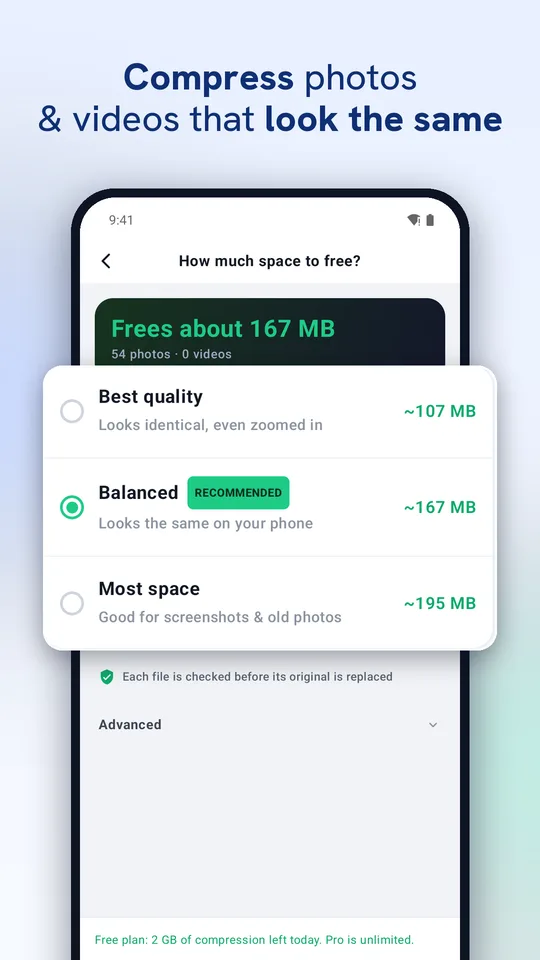
- Choose Best quality, Balanced (recommended) or Most space. The app shows how much each option frees.
- Tap See the difference on your photo to compare a real before/after sample.
- Start. Each file is checked before it replaces the original.
What's kept
The compressed file replaces the original in place: same album, same date taken, same GPS location and camera details. Your gallery and cloud backup see the same item, just smaller.
What's skipped
Files that are already small or already optimized are left alone, and RAW and portrait-depth photos you may still edit are skipped by default.
Can I undo?
Yes. Originals go to an on-device recycle bin (7 days by default). When your phone is critically low on space, you choose between keeping a copy and freeing the space straight away.
Questions
Does it upload my photos?
No. All compression runs on your phone; nothing is uploaded.
How much space will I get back?
It depends on your photos and the quality you choose; MemoryMedic shows the exact amount before you start.
Try MemoryMedic free