 MemoryMedic
Hide private photos and videos on Android
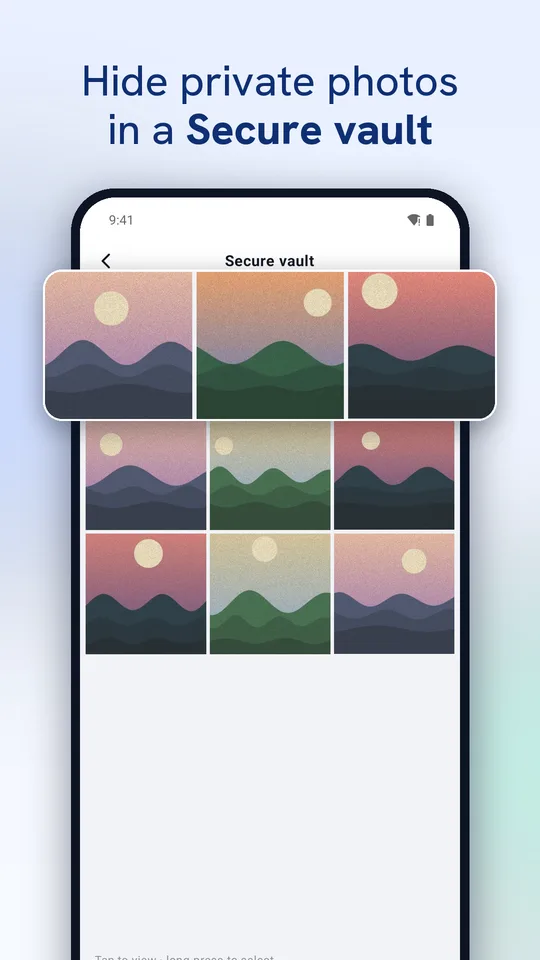
Sometimes you want a photo kept, just not in your gallery for anyone scrolling past. MemoryMedic's Secure vault moves photos and videos into storage only the app can open, encrypted and behind a PIN.
How to hide photos
- Open MemoryMedic and tap Secure vault.
- Choose a PIN (4–8 digits).
- Tap Add photos & videos, pick the ones to hide, and confirm.
How private is it?
Files are encrypted on your phone with a key kept in Android's secure hardware. They're never uploaded and aren't included in backups. Screenshots are blocked while the vault is open, and it locks again when you leave the app.
Restoring
Long-press to select items, then tap Restore; they go back to your gallery exactly as they were.
Before you uninstall
Vault files live only inside the app. Restore them before uninstalling; Android also offers to keep app data when you uninstall. If you forget your PIN, your phone's own screen lock lets you set a new one.
Questions
Does it cost anything?
The Secure vault is included in the free version.
Can other apps see hidden photos?
No. They're removed from the gallery and stored encrypted inside MemoryMedic.
Try MemoryMedic free