 MemoryMedic
How to free up storage on Android (without deleting your photos)
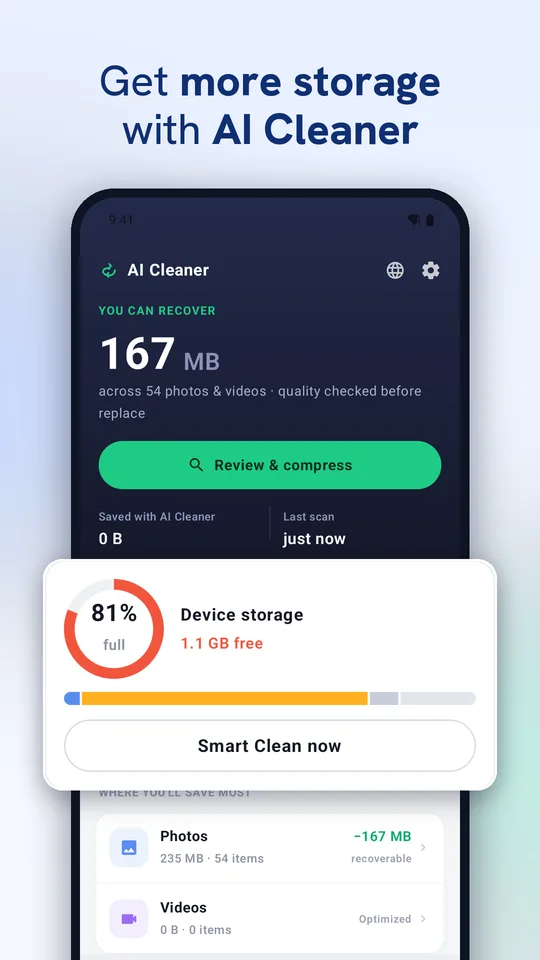
When an Android phone says storage full, photos and videos are almost always the biggest part of it. The good news: you can get most of that space back without deleting a single memory. Here are the steps that free the most space first.
1. Shrink photos and videos in place
Modern formats like WebP and HEVC store the same picture in far fewer bytes. MemoryMedic recompresses the photos and videos already on your phone and replaces each one in place, so it stays in the same album with the same date and location. Each file is checked before its original is replaced, and originals go to an on-device recycle bin so you can undo. Open the app and tap Review & compress to see how much you'll get back before anything changes.
2. Delete duplicate and similar photos
Burst shots, WhatsApp forwards and saved copies quietly double up. MemoryMedic groups exact duplicates and similar shots and keeps the best one; you confirm before anything is deleted. See how to find duplicate photos.
3. Clear out screenshots, screen recordings and big videos
Screenshots pile up fast and are rarely needed later. MemoryMedic's clean-up screen groups screenshots, screen recordings and large videos so you can review and remove them in one go.
4. Uninstall apps you never use
Apps you installed once can hold hundreds of megabytes of data and cache. MemoryMedic's App manager lists apps by when you last opened them and how much space each one uses, and uninstalls them through Android's own confirmation.
5. Clear app caches
In Android Settings › Apps, pick a large app (often a browser, social or streaming app) and tap Storage › Clear cache. Cache rebuilds over time, so this is a quick win rather than a lasting fix.
6. Keep it clean automatically
With MemoryMedic Pro you can schedule an overnight clean-up: new photos in a folder you choose are compressed while your phone charges, so storage doesn't fill up again.
Questions
Will compressing photos reduce quality?
MemoryMedic's recommended Balanced setting looks the same on a phone screen, and you can preview a real before/after sample first.
Is it safe?
Every file is checked before it replaces the original, originals are kept in a recycle bin so you can undo, and everything runs on your phone.
Try MemoryMedic free